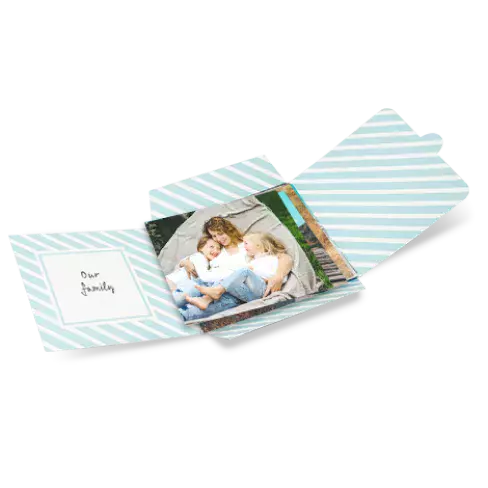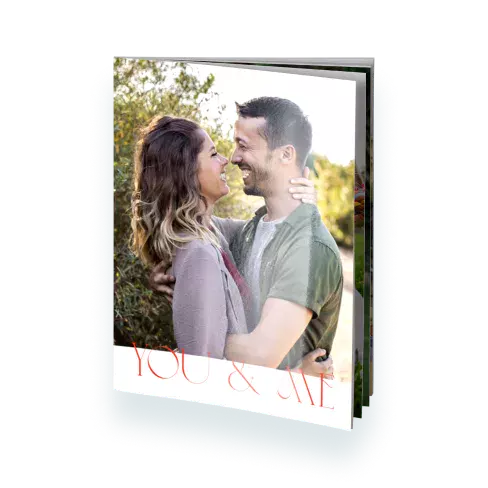
To create a personalised 6x4", 7x5" photo greeting card, follow these steps:
- Roll your mouse over the Products menu under the Shop section at the top of the page.
- Click on Cards in the menu that appears.
- On the next page, click on the type of Cards that you want to create.
- On the cards page, click the "Select designs" tab. To learn more about greeting card click the "About greeting cards tab".
- Under select designs, you will see different greeting card designs. To view more designs, click the "View all" link or filter designs by occasion by selecting the occasion on the right hand side. To choose a design for your card, simply click on the design you would like to use.
- On the next page, choose the photos you would like to use for your cards from the photo viewing menu on the right. Drag and drop your photo into the photo area on the card. To use a photo from another album, click the "Select another album" link above the photos in the menu. Click on "Front", "Inside", and "Back" and click on the "Photo layouts" tab to view photo and text layouts available.
Tip: You can edit a photo after you have placed it on your card by clicking on the paintbrush icon at the bottom left corner of the photo. To remove a photo from a card, click on the grey "X" at the bottom right corner of the photo.
- Add and edit the messages on your card. Click on a text area, a new pop-up window where you can write your own message. Once you have chosen your photos, layouts, designs, and messages, click the "Continue" button.
Note: You can add text and photos to the front, back, and inside of your card. Just click on the "Front," "Inside", and "Back" links beneath the preview to design and make changes.
- On the next page, you will be given the option to have a return address printed on the envelope that comes with your card. Enter in the address information and click "Save card" or leave the fields empty and check the "Do not add a return address" box if you would like to leave your envelopes blank.
- On the final page, you can preview your photo greeting card and return address. Be sure to proofread your message for any text errors. If you would like to make any changes to your card or envelope, click the "Edit card" or "Edit return address" links underneath the preview.
Tip: To see a bigger preview, click the "Preview" link.
- Finally, enter the number of photo greeting cards you would like to order in the "Quantity". Check the box next to "I have reviewed my card for errors," and then click the "Add to cart" button to begin the checkout process.
6x4", 7x5" photo greeting cards are sold individually and include envelopes.