Go to: Help Index
Order photo calendar
|
Overview
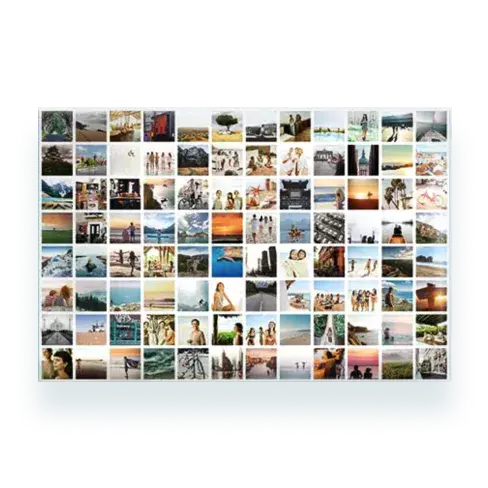
You can create personalised calendars in several different sizes. Choose from our 11" x 8.5" classic calendar, 14" x 11" glossy wall calendar, 12" x 12" square calendar or calendar collage posters, which are available in four sizes. Get started Pick a calendar type, choose a background theme and select your starting month. Step 1: Select a calendar Choose the type of calendar you'd like to create, then click the "Get started" button beneath it. Step 2: Select a theme Next, you'll see all of the background themes you can use. Roll over a theme to see all of its backgrounds. When you've found one you want to use, click on it to continue. Step 3: Select a starting month On the next page, choose the starting month for your calendar from the dropdown menu on the right side of the page and click "Create this calendar." Personalise & Finish Your Calendar Once you've got your calendar started, you'll choose your photos, add captions, and personalise your backgrounds, layouts, and dates to complete your calendar. Step 1: Get started adding photos Click on the "Get photos" button on the right-hand side of the page to begin adding photos. Step 2: Select photos Click on a photo preview at the centre of the page to select that photo for your calendar. The photos you select will appear in your collected photos at the right with an orange check mark. Use the dropdown menu at left to browse through all of your albums, projects, and friends' albums. To remove a photo, click the grey "X" on that photo in the collected photos section. If you'd like to have your photos automatically arranged in your calendar, check the box next to "Autofill using these photos." If you choose autofill, you'll still be able to rearrange your photos and page layouts in the next step. When you're ready to continue, click "Done." Step 3: Arrange your photos & layouts If you choose to create your calendar with autofill, your pages will be laid out with photos and designs. If you want to move photos and change layouts, drag and drop photos from your library and use the "Layouts" tab to select new layouts. If you choose to create your calendar manually, your pages will be blank. To fill them, drag and drop photos onto each page of your calendar. You can change photo layouts by clicking the "layouts" tab and dragging a new layout onto a page. To remove a photo from a page, mouse over it and click the grey "X" that appears. Note: You can undo or redo your actions by clicking the "Undo" or "Redo" icons at the top of the page. Step 4: Choose your backgrounds or change theme Click the "Backgrounds" tab at the bottom of the page to see all of the backgrounds you can use. Drag and drop the backgrounds you want to use onto your pages. To use backgrounds from a different style, click on the style name link just above the background images. To remove a page background and replace it with another, just drag and drop the new background you want to use onto the page. To choose a new theme of backgrounds, click on the "Themes" icon at the top of the page. You'll see all the available themes on the left side of the pane that pops up. Click on a new theme on the left to select it. You'll see previews of all the backgrounds in that theme near the bottom of the pop-up - you can use the arrow bars on the right to browse through all of them. When you've picked a theme you want to use, click "Update calendar." Note: If you choose a new theme, it'll be applied to your entire calendar and change all of your current backgrounds. You'll still be able to individually change each page's background, borders, and fonts using any theme's designs. Step 5: Personalise your dates Please note that personalised dates are available for wall calendars only. You can add your own photos and captions to any day of the year. Click on the day you'd like to personalise and a small pop-up will open. Drag and drop your photo into the box and add text in the "Event" field. When you're finished, click "Done" and your date will be automatically customised. To remove a photo or caption from a date, click on the date you want to edit. Then, delete the caption in the text box and/or click the "X" on the photo. You can import saved dates from old calendars you've made. Click on the "Your dates" icon at the top of the page and choose "Import saved events." A pop-up box with a list of events will open. Check the events to import, and then click "done." You can also change the starting month for your calendar. Click on the "Your dates" icon at the top of the page and choose "Starting month." A pop-up box with a list of available starting months will open. Choose the new starting month from the dropdown menu, and click "Update calendar." Step 6: Customise all months, then preview your calendar Once you've finished customising each month, click the magnifying glass icon at the top of the page to review your calendar. Use the dropdown menu in the preview pop-up to view each month. Click "Done" to return to your calendar or make changes. Step 7: Share your calendar (optional) You can share your calendar with an email. To get started, click the "Share" icon near the top of the page and the share pop-up will open.
Choose quantity and order When you're finished, click the "Order calendar" button. On the next page, select the number of calendars you'd like to order, click the box next to "Yes, I have reviewed my calendar" and click "Add to cart." |
Still have questions?If you still need help, please browse the rest of the Snapfish Help section, check out our Customer Service page for the best way to contact our Customer Service team. |
|||