/************* DO NOT ALTER ANYTHING BELOW THIS LINE ! **************/

Go to: Help Index

Order photo gifts


How to create a photo gifts
How to create a photo calendar
How to create a photo book
How to create a photobox
How to create a Photo Pairing Game
Frequently Asked Questions: Photo gifts

How to create a photo gifts

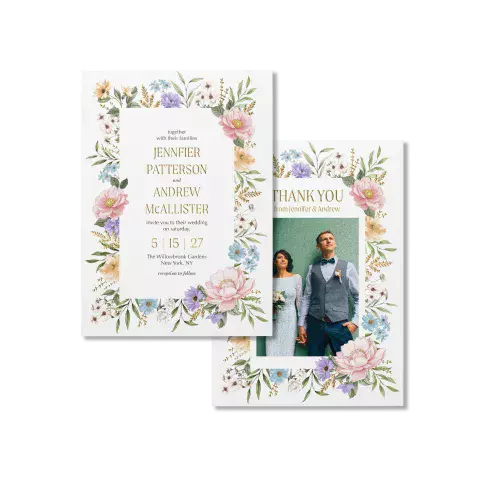
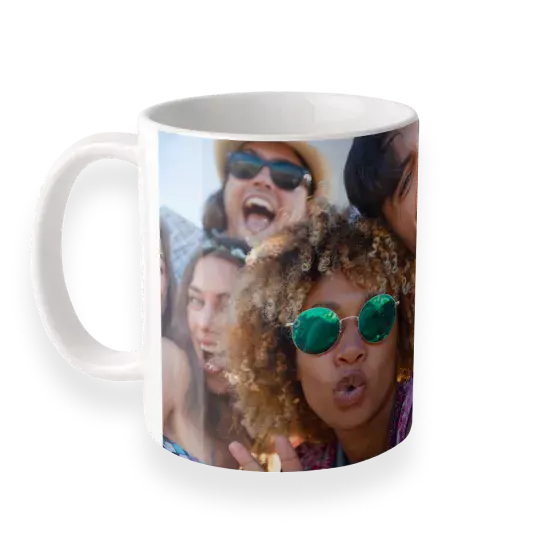
You can use your photos to create unique, personalised photo gifts. We can ship your photo gifts to you or to a friend or family member, provided that they live in one of our participating countries. View a list of countries where we ship.

  1. Roll your mouse over the Products menu under the Shop section at the top of the page.
  2. Click on Shop all products in the menu that appears.
  3. In the store, select your gift by clicking on an item in the list to the left. You can also click on one of the featured products in the main part of the page.
  4. If your photo appears on the page, then you have already selected a photo. Enter a quantity for the item and choose the size, colour, or whatever other specifications are required.
  5. If your photo does not appear on the photo gift page, your will see your photos in a row at the bottom of the page. If your photo is not in this album, click 'Choose another album.' Click 'Upload new photo' if the photo you choose is not yet in your Snapfish account.
  6. Once you have found the photo you want to use, click 'Select' under that photo. Then choose the size, quantity, and/or colour for your gift -- whatever specifications are required.
  7. Notice if there are any yellow triangles next to your selected photo. The yellow triangle indicates that the photo is too small to make a high-quality gift.
  8. Click 'Add to cart'.
  9. Once you have all gift items and quantities selected in your cart, click 'Order now'.
  10. Enter your delivery address information and when you are done, click 'Continue'.
  11. On the next page, choose your preferred means of payment and enter chosen payment method details. If you have a coupon or gift certificate to use with your order, enter the coupon or gift certificate code in the box on this page, too. When you are done, click 'Continue'.
  12. Review your order for accuracy. Then click 'Buy now'.
  13. On the final page, you will see a confirmation with your order number. Please print or save this page for your records.
View photo gift prices.
Learn more about payment options.
Learn more about shipping.


How to create a photo calendar

Overview

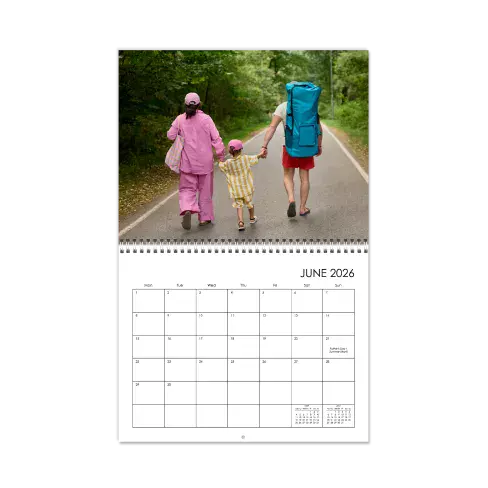
You can create personalised 12- or 18-month calendars in three different sizes. Choose from our 8" x 11" classic calendar, 11" x 14" premium calendar, or 12" x 12" square calendar.

You can start a calendar by size or style. To learn how, follow the steps below.

Choose a calendar by design
  1. Choose your design
    Under the "Shop by design" section on the main calendars page, click the "See all styles" link to view each style. Roll over a style to see a sample of the background designs, then click on the style you want to use.
  2. Select a size
    Click on the size you want to create. Choose from 8" x 11", 11" x 14", or 12" x 12".
  3. Choose your starting month and length
    On the next page, use the dropdown menu at right to select the starting month for your calendar. Then, click the circle next to the number of months you want in your calendar (either 12 or 18) and click "Create this calendar".
Choose a calendar by size
  1. Select a size
    Under the "Shop by size" section on the main calendars page, click on the size you want to create. Choose from 8" x 11", 11" x 14", or 12" x 12".
  2. Choose your design
    Roll over a style to see a sample of the background designs, then click on the style you want to use to choose it for your calendar.
  3. Choose your starting month and length
    On the next page, use the dropdown menu at right to select the starting month for your calendar. Then, click the circle next to the number of months you want in your calendar (either 12 or 18) and click "Create this calendar".
Personalise and Finish Your Calendar

Once you have got your calendar started, you will choose your photos, add captions, and personalise your backgrounds, layouts, and dates to complete your calendar.

  1. Choose to add photos manually or with Autofill
    Design your calendar from the start to finish or use Autofill. Click on the "Get photos" button, select your albums and photos following the instructions below, then check the box next to "Autofill using these photos" if you would like to have your photos and designs automatically placed for you. (If you use autofill, you can always move photos and change layouts and designs later.)
  2. Select photos
    Click on a photo preview at the centre of the page to select that photo for your calendar. The photos you select will appear in your collected photos at the right with check mark. Use the dropdown menu at left to browse through all of your albums, projects, and friends' albums. To remove a photo, click the grey "X" on that photo in the collected photos section. When you are ready to continue, click "Done".
  3. Arrange your photos and layouts
    If you chose to create your calendar with Autofill, your pages will be laid out with photos and designs. If you want to move photos and change layouts, drag and drop photos from your library and use the "Layouts" tab to select new layouts.

    If you chose to create your calendar manually, your pages will be blank. To fill them, drag and drop photos onto each page of your calendar. You can change photo layouts by clicking the "Layouts" tab and dragging a new layout onto a page. To remove a photo from a page, mouse over it and click the grey "X" that appears.

    Note: You can undo or redo your actions by clicking the "Undo" or "Redo" icons at the top of the page.
  4. Choose your backgrounds
    Click the "Backgrounds" tab at the bottom of the page to see all of the backgrounds you can use. Drag and drop the backgrounds you want to use onto your pages.

    To use backgrounds from a different style, click on the style name link just above the background images. To remove a page background and replace it with another, just drag and drop the new background you want to use onto the page.
  5. Add custom dates
    You can add your own photos and captions to any day of the year. Click on the day you would like to add an event to and a small pop-up will open. Drag and drop your photo into the box and add text in the "Event" field. When you are finished, click "Done" and your date will be automatically added to your calendar.

    To remove a photo or caption from a date, click on the date you want to edit. Then, delete the caption in the text box and/or click the "X" on the photo.

    Note: You can import saved dates from old calendars you have made. Click on the "Your dates" icon at the top of the page and choose "Import saved events." A pop-up box with a list of events will open. Check the events to import, and then click "Done".
  6. Customise all months, then preview your calendar
    Once you have finished customising each month, click the "Preview" icon at the top of the page to review your calendar. Use the dropdown menu in the preview pop-up to view each month. Click "Done" to return to your calendar or make changes.
  7. Choose quantity and order
    When you are finished, click the "Order calendar" button. Next, select the number of calendars you would like to order, click the box next to "Yes, I have reviewed my calendar" and click "Add to cart"
View photo calendar prices.
Learn more about shipping.


How to create a photo book

Overview
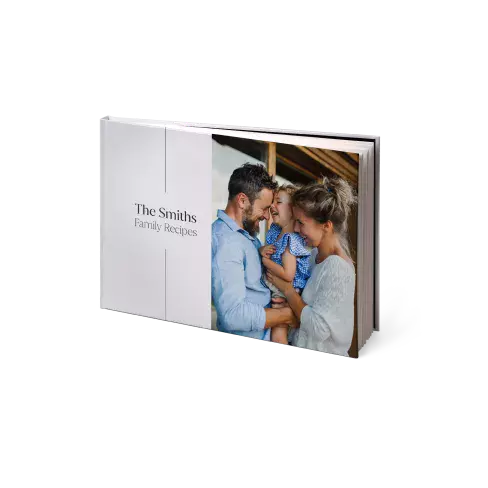
Available in hardcover, soft-cover, or mini styles, our photo books are perfect for sharing your favourite photos in a book that is as unique as your memories!

Photo books are great for celebrating weddings, anniversaries, baby's first year, and more. Choose from our Classic Photo Book, 20x20 Square Photo Book, Soft-Cover Photo Book, 30x30 Luxury Book, and our Mini Books.

How to create hardcover and soft-cover photo books
To create a hardcover or soft-cover photo book, follow the steps below.

Note: To create a photo book, you need to have Adobe Flash installed on your computer. If you do not have Flash installed, you will be prompted to install it after you choose your cover and design theme.
  1. Click on the "Store" tab, found at the top of most pages.
  2. Follow the "Photo books" link in the "Favourites" list at the top left of the store page to enter the Photo Books Store.
  3. In the Photo Books Store, click on the photo book style you would like to create.
  4. On the next page, choose your cover style and design theme. Click on the cover and theme that you want to use, and then click the "Make this book" button.

    Note: You can change your cover or theme at any time while creating your photo book.
  5. You will be asked whether you want to design your book from scratch or if you would like to have your photos and designs automatically placed for you with our EasyFill tool. (If you use EasyFill, you can always move photos and change layouts and designs later.) Click "Continue" to move on to the next step.
  6. Next, you will choose the photos that you want to include in your book. To select a photo, click on the "Get photos" button, each photo will be added to the photos in the right-hand column that will be included in your book. To de-select a photo, click on the grey "X" at the lower right corner of the photo under "Your collected photos." To add photos from a different album, use the menu on the left side of the page to select another album. When you are ready to place your photos, click the "Done" button.
  7. Now for the fun part - designing your photo book! You will see your book template at the centre of the page, your collected photos at the right, and a scroll bar of menu options below your template.

    You can undo your most recent action by clicking on the white "Undo" button. Once you undo it, it can be redone - just click the "Redo" button. You can undo or redo up to 10 of your most recent actions by clicking on the small arrow next to "Undo" or "Redo" and selecting an action from the list that appears.

    Tip: You can save your progress at any time by clicking the "Save book" button near the bottom of the page. Clicking the "Back to store" button will cancel the work you have done on your photo book and return you to the main Photo Books Store page.
  8. To place photos, simply drag a photo from the collected photos at the right into an empty photo area labelled "Drag photo here" in the book template. To choose a different photo layout for any page, click on the "Layouts" button in the options at the bottom of the page. A number of small layout previews will appear in the scroll bar - to choose one, click on its preview and then drag it to the page you would like to use it.

    Tip: You can edit a photo after you have placed it in your photo book by clicking on the paintbrush icon that appears at the centre of the photo. Once you are happy with your edits, click "Apply changes." This will only edit the photo in your book, not the master copy of the photo in your library.
  9. To add a caption or message to any page, select the box that reads, "Edit text". This will bring up a small window where you can type your caption, and choose the font, size, colour, and positioning of your text. When you are done, click the "Apply changes" button and your caption will appear on the page. If you do not see a "Edit text" box on a page where you want to add a caption, choose a new page layout by clicking on the "Layouts" tab at the bottom of the page.
  10. To change your book's cover style, theme, photo layouts, backgrounds, or photo borders, click on the related tab to view your options. When you find an option you would like to use, drag and drop it into the page you want to edit. For borders and backgrounds, you can also apply the same design to every page of your book by checking the box next to "Apply to all pages."

    Tip: To quickly view, sort, delete, or edit any of the pages in your book, click on the "Pages" tab in the scroll bar menu. Clicking on a page preview will bring that page up in your book template.
  11. Once you are happy with all of the pages in your photo book, click on the yellow "Preview book" button to proof your book before you order. If you need to make changes, click "Back to edit." If you are happy with your photo book and ready to check out, click "Order this book."

    Tip: You can also save your book or send your book project to a friend by using the blue buttons at the bottom of the page.
  12. On the next page, choose your photo book's cover colour and enter the number of books you would like to order. Check the box next to "Yes, I have reviewed my book," and click the "Add to cart" button to check out.
How to create a mini book

The mini books are created using a software on your computer. It is also possible to create other photo books using this software.

To create a mini photo book, follow the steps below.
  1. Click on the "Store" tab, found at the top of most pages.
  2. Follow the "Photo books" link in the "Favourites" list at the top left of the store page.
  3. In the Photo Books Store, click on "Download photo book software"
  4. Follow the steps to download the software to your computer. Once the download is complete, double-click the file Setup_SNAPFISH.exe, then follow the steps to install the software.
  5. Once you have installed the software, click on the "Small Photo Books" tab to find mini books.
  6. Begin making your book. You can choose from a variety of backgrounds and layouts for each page of you book.
  7. Click the "Preview" button at the top of any page to see what that page will look like when printed. Review your captions carefully for spelling and grammatical errors.
  8. Once your photo book is complete, you can choose to save the book to a CD, which you can mail to us. Or you may upload the book directly to Snapfish, and we will complete your order. You must be online in order to upload your book and complete your order.
Common questions about photo books.

How many pages and/or photos can I have in my photo book?
Hardcover and soft-cover photo books have a minimum of 20 pages, and a maximum of 150. Additional pages beyond the standard 20 are sold in sets of two at an extra cost. Photo book pages can be single or double-sided - for example, a 20-page, single-side book contains photos on 10 pages, while a 20-page, double-sided book contains 20 pages of photos. (There is no additional charge for double-side pages.

Mini Books: Mini Books have 24 pages, double-sided. Pages cannot be added to or removed from mini books, and all photos are full-page.

Can I use both landscape and portrait photos in a photo book?
Photo Books are designed with layout to suit both landscape and portrait format photos.

Landscape-oriented photos are best for mini books, since each photo takes up an entire page.

How long do photo book orders take?
Once you place your order, we will process and ship it out within 3-6 business days. The actual delivery time depends on the delivery method you choose at checkout.

Can I ship a photo book directly to a friend?
Yes -- your photo book order can be shipped to any address in these countries. Please note that all the items in your shopping cart must ship to the same address. For instance, we cannot ship photo books to one address, and your prints to another. If you need to order some items for yourself, and some for a friend, you will need to place two separate orders.

What is the return/refund policy for photo books?
Your satisfaction is guaranteed. If you are ever dissatisfied with your photo book order, we will provide you with a replacement or a full refund.

View photo book prices.
Learn more about shipping.


How to create a photobox

Use your photos to create a Memento Box. Each Memento Box contains up to 50 photos printed with white borders, stored in an elegant aluminium box. To create a Memento Box follow the steps below: 
  1. To start, click on the 'Store' tab at the top of most pages.

  2. In the store, select the Memento Box by clicking on the name in the list to the left. You can also click on one of the featured products in the main part of the page.

  3. On the next page, you'll begin choosing the photos you want to use in your Memento Box. Click on an album in the middle of the screen to open it, and then click on the photos you want to add. When a photo is selected, there will be an orange check mark at the corner of the thumbnail and the photo will appear in the photo "well" on the right. TIP: If you want to see a larger preview of a photo before adding it to your selected photos, click on the magnifying glass icon just below a photo's thumbnail.

  4. To select photos from another album, use the navigation links on the left of the page. You can use photos from your friends' albums in your Memento Box. If you want to add all of the photos from an album to your Memento Box, click the "select all" link at the top left of the photo list. You can select up to 50 photos for your Memento Box.

    TIP: If you want to see a larger preview of a photo before adding it to your selected photos, click on the magnifying glass icon just below a photo's thumbnail.

    NOTE: To remove a photo from your selected photos, click on the grey "X" at the lower right corner of the photo's thumbnail. If you want to remove all of the photos from your selected photos, click the "remove all" link.

  5. Once you've selected all of the photos you want to use, click the "continue" button.

    NOTE: Please select 50 photos to order your Memento Box.

  6. Once you're happy with your Memento Box, select the quantity you want to order, check the box next to "I have reviewed my photos for errors," and click the "add to cart" button.

  7. In your cart, you can preview, edit, or remove your Memento Box. When you're ready to order, click the "check out" button.


View Photobox prices.
Learn more about shipping.

How to create a Photo Pairing Game

Use your photos to create a photo pairing game. Each Photo Pairing game contains 25 photos printed in pairs to make a set of 50 cards. The Photo Pairing Game are printed with a neutral reverse side on thick carton paper and come with a gift box. To create a Photo Pairing Game follow the steps below: 
  1. Roll your mouse over the Products menu under the Shop section at the top of the page.

  2. Click on Shop all products in the menu that appears.

  3. In the store, select the Photo Pairing Game by clicking on the name in the list to the left. You can also click on one of the featured products in the main part of the page.

  4. On the next page, you'll begin collecting the photos you want to use in your Photo Pairing game. Click on an album in the gray box to open it, and then click on the photos you want to add. When a photo is selected, there will be an orange check mark at the corner of the thumbnail and the photo will appear in the photo "well" at the right.

    TIP: If you want to see a larger preview of a photo before adding it to your selected photos, click on the magnifying glass icon just below a photo's thumbnail.

  5. To select photos from another album, use the navigation bar at the left of the page. You can use photos from your favourites and friends' albums in your Photo Pairing game. If you want to add all of the photos from an album to your Photo Pairing Game, click the "select all" link at the top left of the photo list.

    NOTE: To remove a photo from your selected photos, click on the gray "X" at the lower right corner of the photo's thumbnail. If you want to remove all of the photos from your selected photos, click the "remove all" link.

  6. Once you've selected all of the photos you want to use, click the "continue" button.

    NOTE: You must select 25 photos to create your game.

  7. Once you're happy with your Photo Pairing game, select the quantity you want to order, check the box next to "I have reviewed my cards for errors," and click the "add to cart" button.

  8. In your cart, you can preview, edit, or remove your Photo Pairing game. When you're ready to order, click the "check out" button.


View Photo Pairing Game prices.
Learn more about shipping.

Frequently Asked Questions: Photo gifts

How long do photo gift orders take?
Once you place your photo gift order, we will process and ship it within 3-4 business days. We will email you when your order ships. Shipping times vary depending on the method you choose.

Can I ship a photo gift directly to the recipient?
Yes, your photo gift order can be shipped to anyone you name, provided that he or she lives in one of the countries we ship to. Please note that all the items in your shopping cart must ship to the same address. If you need to order some items for yourself, and some for a friend, please place two separate orders.

What resolution is required to put a photo on a gift?
Most gifts require a photo with a minimum resolution of 800 x 600 pixels, but you can click the link below to view a list of minimum resolution requirements for each gift. Whenever you order a gift, we will let you know if the resolution of your photo is high enough. You will see a yellow triangle icon beneath the photo as you are making the gift once they are in your cart. The yellow triangle indicates that the photo is too small to make a high-quality gift.

View a list of minimum photo resolution requirements.


Still have questions?

If you still need help, please browse the rest of the Snapfish Help section, check out our Customer Service page for the best way to contact our Customer Service team.

Main Help Index
Your photos
Your Account
Sign up and log in
Edit your personal information
Change your email address
Address Book
change newsletter preferences
Unsubscribe from newsletter
Tell a friend
Digital photo services
Upload digital photos
Emailing Digital and Mobile photos
Store photos online
View photos
Share photos
Order prints
Pricing
Photo resolution
Shopping
Order prints
Order photo set
Order prepaid prints
Order poster prints
Order desktop calendar
Order collage poster prints
Order collage prints
Order collage mug
Order collage mousemat
Order collage canvas
Order photo gifts
Order greeting cards
Order Photo Books
Order photo calendar
Product prices
Payment options
Order status
Shipping information
Coupon Codes
Edit and organize photos
Overview
Create an album
Rename an album
Caption photos
Rotate photos
Copy photos
Move photos
Rearrange photos
Delete photos
Delete albums
Fix and enhance photos
Add borders
Snapfish information and policies
Online storage policy
Privacy policy
Online security
Snapfish company information
Customer service
Legal information about our site